
World clock New
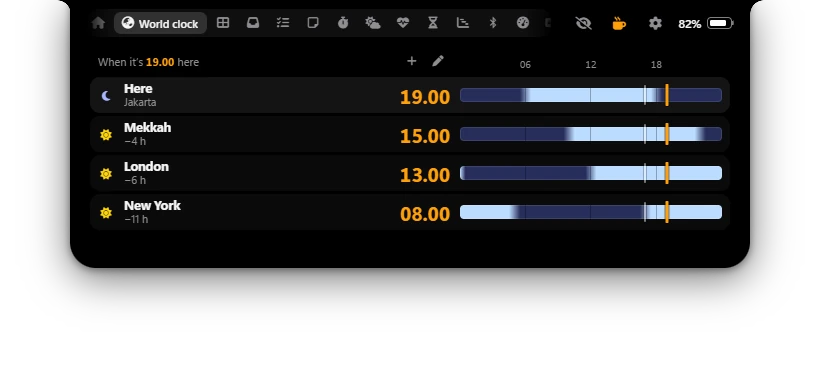
The time in up to 8 other places next to yours, with a 24-hour strip for each that shows when it's day or night there, and a meeting planner: point at any hour of your day to see everyone's time.
World clock tab (turn it on in Settings → Modules) · Settings → General → Clock
Turning it on
- Open Settings → Modules.
- Tick World clock. It's off at first, also after an update.
- The tab, with a globe icon, shows at the end of the row of tabs. Drag it in Modules if you want it elsewhere. See Settings.
Without the tab you can still use the world clock: in the Dashboard widget and on a side of the closed Poni (see below).
What the tab shows
- Here at the top: the time on this PC, with the city of its time zone under it. It stays at the top while the places scroll.
- Each place under it: a sun or a moon (the sun from 06:00 to 18:00 there), its name, the time there in big numbers, and under the name how far it is from your time, like +5 h or −2 h, with tomorrow or yesterday when the date there isn't yours. A place with your time says Same time. Point at a name to see its time zone, like Asia/Tokyo.
- A strip on the right of each place: see below.
The times follow 24-hour time in Settings → General → Clock, and move on every minute, on the minute. With more than 4 places, the list scrolls and fades at the bottom while there are more below.
The 24-hour strips
Each strip is your day, from 00:00 on the left to 24:00 on the right, with 06, 12 and 18 marked above the strips. Its colour shows day and night at that place: light while it's day there, dark while it's night, with dawn and dusk blended in. A thin white tick marks now.
So you see at a glance when a place is awake. For example, with Jakarta here, London's strip is dark through your morning and turns light around midday, when London's day starts.
Planning a meeting
Before you point, the line at the top says Point at the strips to plan a time.
- Move the mouse along any strip. Every place's time, sun and moon jump to that moment of your day, to the quarter hour, an orange mark shows it on every strip, and the top line says When it’s 15:00 here (or whatever time you point at).
- Look for a time that's day for everyone, say, then click it (or drag along the strip) to keep it. It stays when the mouse moves away.
- Click Now at the top, there while a time is kept, to go back to the times right now.
On a touchscreen, tap a strip or slide a finger along it to keep a time; swiping up or down scrolls the places. Leaving the tab goes back to now too.
Adding, renaming and removing places
- Add: click + at the top, then type a city. From 3 letters, suggestions show each city with its time zone and the time there. Pick one with the mouse, or with ↑ / ↓ and Enter; Enter alone adds the best match. Esc closes the list, and × closes the box. Before you have any places, the tab says Add a city to see its time next to yours, with the box right there.
- Which cities: about 120 well-known ones, like Jakarta, Makkah, Tokyo, London or New York (Bandung, Surabaya and Medan share Jakarta's zone), and every other time zone Windows knows, by its own city. You can also type a zone as it's written, like
Europe/Vilnius. Accents don't matter: Bogota finds Bogotá. - Edit: click the pencil. In place of its strip, each place gets a name box and buttons. Type a new name (up to 30 letters; leave it empty for the city's own name), use the arrows (Move up, Move down) to change the order, or × (Remove) to take it out. Click the check (Done) when you're finished.
- Up to 8 places. With 8, the + is greyed out: remove one to add another.
Name a place after the people there, like Rina (Tokyo) or Client Dubai. The name shows in the tab, the widget and the closed Poni.
The same places everywhere
The world clock is one list. Add, rename or move a place in one spot and it changes everywhere:
- Settings → General → Clock → World clock: the same add box, names, arrows and ×. See Settings.
- The Dashboard's World clock widget: the first 4 places. While the tab is on, a click on the widget opens it. See Dashboard.
- A side of the closed Poni: pick World clock for its left or right in What the closed Poni shows (Settings → General → Closed Poni) to see the first place's name and time, like Tokyo 18:42. See The closed Poni.
So put the place you check most at the top.
Where the times come from
From Windows' own time zone data, so nothing is fetched online and it works offline. Summer time is included: when a place changes its clocks, its time and its distance from yours follow by themselves. If you change this PC's time zone, Here follows too.
Options
| Option | What it does |
|---|---|
| World clock (Settings → Modules) | Shows the World clock tab. Default: off. |
| World clock (Settings → General → Clock) | Up to 8 places, each in its own time zone and with a name of your own. Default: none. |
| 24-hour time (Settings → General → Clock) | 24-hour (14:30) or 12-hour (2:30 PM) times, here and everywhere in Poni. Default: the same as Windows. |