
Dashboard
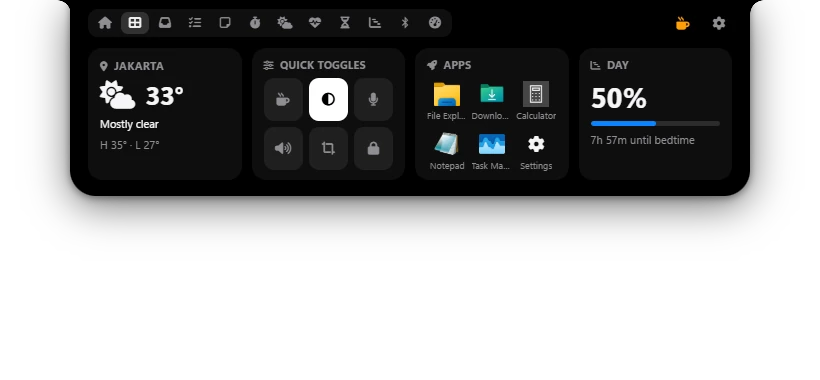
Four widgets of your choice in one tab: weather, quick toggles, your favorite apps, how far the day is, and more. You decide which ones show.
Dashboard tab · Settings → Dashboard
Picking widgets
- Open Settings → Dashboard.
- At the top are four drop-downs, one for each widget spot from left to right.
- Pick a widget in each one. The Dashboard in Poni changes right away.
The defaults are Weather, Quick toggles, App launcher and Day progress. Many widgets can be clicked to open their full tab.
All widgets
| Widget | What it shows |
|---|---|
| Weather | City, temperature, conditions, and today's high and low. Click it to open the Weather tab. See Weather. |
| Quick toggles | Eight quick buttons for Windows. They're explained below. |
| App launcher | An Apps card with the first six items of your launcher list. Click one to open that app, folder or file. |
| Day progress | How much of your day has passed, from wake-up time to bedtime, and the time left until bed. The times are set in Settings → Day Progress. Click it to open the Day Progress tab. |
| Clock | The weekday, the time and the full date. |
| Now playing | Album art, title and artist of the song playing, with previous, play/pause and next buttons. |
| Up next (calendar) | Your next three events, without all-day events. Click an event to open its meeting link. See Calendar. |
| Todo | Up to four open tasks. Click it to open the Todo tab. |
| Pomodoro | The current phase (Focus or Break), time left, and a Start/Pause button. Click outside the button to open the Pomodoro tab. |
| Health rings | The Health rings and today's glasses of water, breaks and mindful minutes. Click it to open the Health tab. |
| Screen time | Today's total screen time, the app you used most, and a bar by category. Click it to open the Screen Time tab. |
| System | CPU and memory use. Click it to open the System tab. |
| Quote of the day | A quote that changes every day. |
| Prayer times | Today's five prayer times. The next one is marked, with a countdown in the widget's title. Needs Prayer time reminders on in Settings → Prayer Times. See Prayer Times. |
Quick toggles
Buttons that are on light up. Hover over a button to see its name.
| Button | What it does |
|---|---|
| Wi-Fi | Turns Wi-Fi on or off. |
| Bluetooth | Turns Bluetooth on or off. |
| Keep awake | The cup icon. Keeps the screen on and the PC from sleeping while it's on. It stays on until you turn it off, also after Poni restarts. |
| Dark mode | Switches the Windows theme, for apps and the system, between dark and light. |
| Mute microphone | Mutes your microphone. The button is colored while the mic is muted. |
| Mute sound | Mutes your PC's sound. The button is colored while sound is muted. |
| Screenshot (Snipping Tool) | Opens the Windows snipping tool to take a screenshot. |
| Lock PC | Locks Windows. |
App launcher
The launcher list is set in Settings → Dashboard, under App launcher. It starts with File Explorer, Downloads, Calculator, Notepad, Task Manager and Settings.
To add an app or file:
- Click Add app or file. The file picker opens in the Start Menu Programs folder.
- Pick the app's shortcut (.lnk), like Word or Google Chrome. A regular file works too, like
Budget.xlsx. - Click Open. The new item goes to the bottom of the list, named after the file.
To add a folder: click Add folder and pick it, for example your project folder. Clicking it in the widget opens it in File Explorer.
To remove an item: click the × on its right.
The widget only shows the first six items. They keep the order you added them in, which you can't change yet. To move an item to the end, remove it and add it again.
Windows keeps app shortcuts in C:\ProgramData\Microsoft\Windows\Start Menu\Programs. Apps installed only for your account are usually in %APPDATA%\Microsoft\Windows\Start Menu\Programs. Type that path into the file picker's address bar.
Opening apps with AI Chat New
AI Chat can open any launcher item, also the ones the widget doesn't show. For example: “open calculator”. See AI Chat.