Is Poni free?
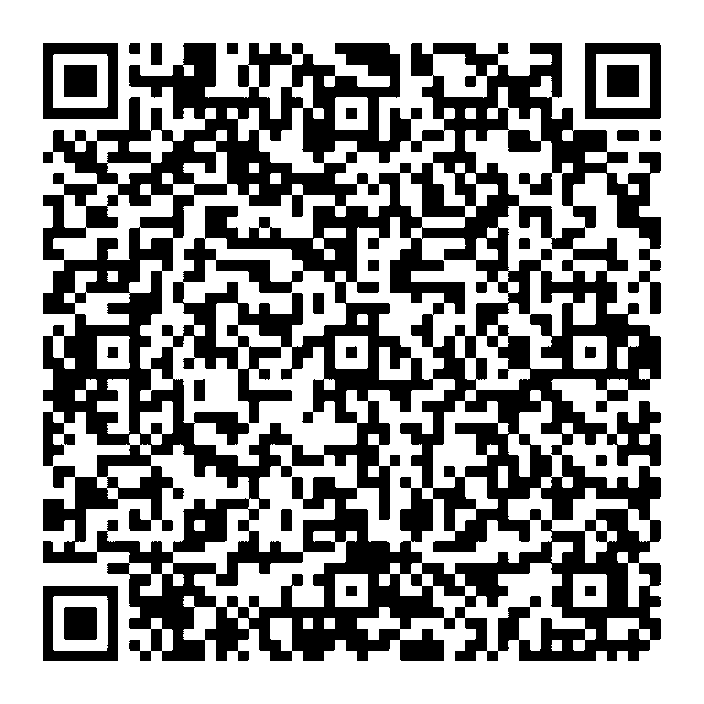
Yes, free and without ads. If Poni is useful to you, you can support its development through Gumroad or QRIS below.
Is it safe? Why is there a SmartScreen warning?
SmartScreen warns about apps that aren't signed with a paid code-signing certificate. It doesn't mean the app is harmful. Every Poni update is digitally signed, and Poni refuses to install a file whose signature doesn't match.
Setup or Portable?
Setup installs Poni on your PC and updates itself, so that's the one we recommend. Portable runs without installing, but you have to download new versions yourself. Poni tells you when a new version is out.
How do updates work?
The Setup version checks for updates when it starts and every 6 hours. An update found at startup is installed right away. One found later waits until you're away from the PC, then Poni installs it and restarts itself. You can also check by hand in Settings → About.
Where does my data go?
Nowhere. Everything is stored in %APPDATA%\Poni on your PC. Poni only goes online for the features you turn on: weather (Open-Meteo), your calendar links, GitHub, AI Chat and translation (to the AI provider you pick), and update checks on GitHub.
How do I use AI Chat?
Create a free Gemini API key in Google AI Studio (a Google account is all you need), then paste it into Poni under Settings → AI Chat & Translate. Open the AI Chat tab and start asking. Your key is stored encrypted on your PC, and your chat history stays on your PC until you press "New chat".
Why does the Wi-Fi list ask for Location permission?
On Windows 11, Microsoft only shares the list of Wi-Fi networks with apps that are allowed to use your location, because the names of nearby networks can give away where you are. If the permission is off, Poni shows a button to Settings → Privacy & security → Location. Turn on Location services and Let desktop apps access your location. Poni doesn't send your location anywhere.
Can I make it my own?
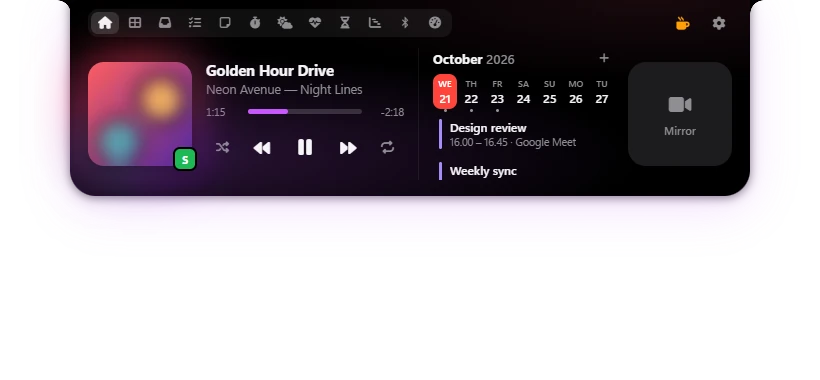
Yes. Poni's size and position, transparency, which modules show up, the default tab, the glow effect, Live Activities, keyboard shortcuts and even the 3D cat can all be changed in Settings.
How do I uninstall it?
Open Windows Settings → Apps → Installed apps, find Poni and choose Uninstall. For the portable version, just delete the .exe file.