
Shelf & Drop Actions
Drag files to Poni and drop them on a tile to compress, convert, move, share or keep them on the Shelf. The Shelf is a temporary spot for files you're using a lot right now.
Settings → Drop Actions & Shelf · Shelf tab
Using Drop Actions
- Drag one or more files from File Explorer or the desktop to Poni at the top of the screen.
- Poni opens and shows the action tiles.
- Drop the files on the tile you want, for example Compress.
- Poni shows Working…, then the result, like Compressed → Report.zip. If something goes wrong, the message is red.
Tiles that don't fit your files are dimmed and can't be used. For example, Extract is dimmed unless you drag a .zip file. Files dropped outside the tiles go to the Shelf.
Text or links dragged from a browser can only go to the Shelf. The other tiles are dimmed.
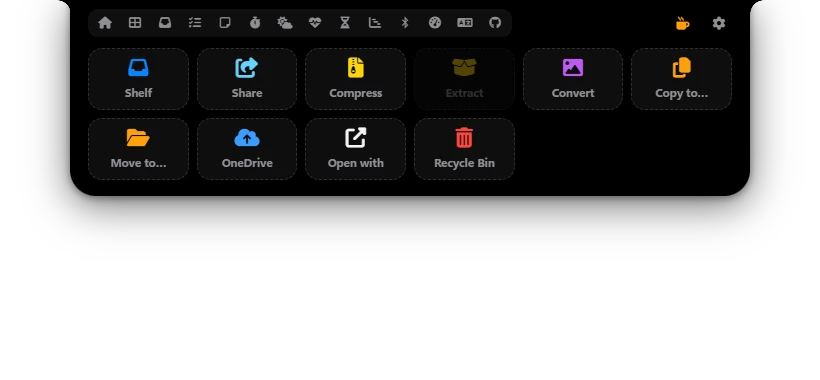
Every tile
| Tile | What it does |
|---|---|
| Shelf | Keeps the files on the Shelf. Nothing is copied or moved. |
| Share | Opens the Windows Share window: Nearby sharing, Mail and other apps. |
| Compress | Makes a .zip in the same folder. One file becomes filename.zip, several files become Archive.zip. Folders are compressed with everything in them. |
| Extract | Unpacks a .zip into a new folder with the same name, next to the zip. Only for .zip files. |
| Convert | Turns PNG into JPG, and JPG, BMP, GIF or ICO into PNG. The result is saved next to the original, which stays as it is. Only for images. |
| Copy to… | Copies into a folder you pick. |
| Move to… | Moves into a folder you pick. |
| OneDrive | Copies into the OneDrive\Poni folder, and OneDrive uploads it to the cloud. This tile only appears when a OneDrive folder is found on your PC. |
| Open with | Opens the Windows "Open with" window so you can pick an app. If you drag several files, only the first one is opened. |
| Recycle Bin | Moves the files to the Recycle Bin. |
| Eject | Safely removes a drive. Drag the drive (like E:\) from This PC onto this tile. This tile is off until you turn it on. |
Existing files are never overwritten. If the name is taken, Poni adds a number, like Report (2).zip.
Choosing the tiles
- Open Settings → Drop Actions & Shelf, section Tiles.
- Tick the tiles you want and untick the ones you don't need.
- Use the up and down arrows to change their order. Poni shows the tiles in this order.
Shelf
The Shelf keeps a list of files, links and bits of text in the Shelf tab. It only remembers where files are. Nothing is uploaded or copied. The number of items shows as a small badge on the Shelf tab icon.
To put something on the Shelf:
- Drag files to Poni and drop them on the Shelf tile, or anywhere outside the tiles.
- If Drop actions are off, drag files to Poni. The Shelf tab opens, and you drop them there.
- Click the + button on the right of the Shelf tab to pick files.
- Drag text or a link from a browser to Poni.
Using what's on the Shelf:
- Click to select. Ctrl+click or Shift+click to select several.
- Double-click to open. Links open in your browser, and text is copied to the clipboard.
- Drag files out to a folder, an email, a chat or any other app. If several files are selected, they all go together.
- Right-click for a menu: Open, Show in folder, Copy path, Share… and Remove. For text and links the menu is Open, Copy and Remove.
- Click the × on an item to take it off the Shelf. The trash icon on the right of the tab clears the whole Shelf.
Taking items off the Shelf or clearing it never deletes the files themselves. The other way round, if a file is moved or deleted, it disappears from the Shelf.
Sharing from the Shelf
On the right of the Shelf tab is a Share box. While dragging files, drop them on it to open the Windows Share window right away. You can also click the Share box to share the selected items. If nothing is selected, all files on the Shelf are shared. Text and links are left out. If there are no files yet, it says Add files first.
Options
| Option | What it does |
|---|---|
| Drop actions | Shows the action tiles when you drag files to Poni. Default: on. |
| Tiles | Which tiles show, and in what order. Default: all tiles except Eject. |
| Shelf tab | Shows the Shelf tab and the Shelf tile. The Shelf tab must also be on in Settings → Modules. Default: on. |
| Open the shelf when dragging files (if drop actions are off) | With Drop actions off, the Shelf tab opens by itself when you drag files to Poni. Default: on. |
| Remove from shelf after dragging out | An item leaves the Shelf once you drag it somewhere else. Handy if you use the Shelf as a stopover. Default: off. |