
Todo
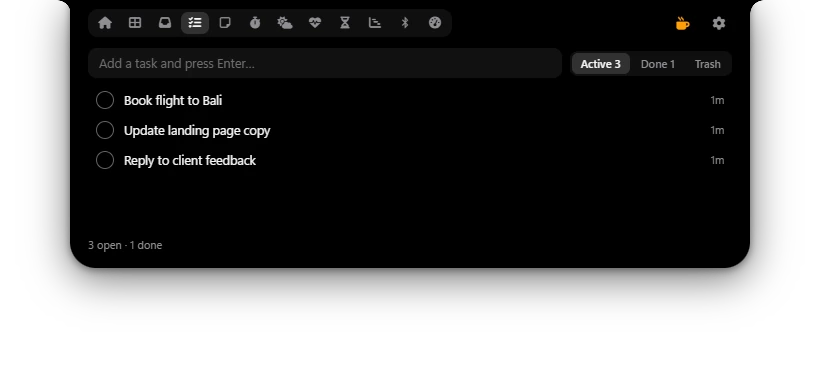
A task list with reminder times. Poni counts down tasks that are almost due in the closed notch, and chimes when the time comes.
Todo tab · Settings → Live Activities → Todo deadlines
Adding a task
- Open the Todo tab and click the Add a task… box at the top.
- Type the task, for example
Pay the electricity bill. - Press Enter.
The task goes into the Active list. While you type, Poni doesn't close by itself. Press Esc or click outside Poni when you're done.
Adding a time by typing
Type the time at the end of the task and press Enter. Poni reads the time and removes it from the task's name. So Call Budi 15m becomes the task Call Budi, due in 15 minutes.
| Type at the end | Means |
|---|---|
15m, 15 min, 15 minutes, in 15 minutes, 15 menit, dalam 15 menit | 15 minutes from now. |
2h, 2 hrs, 2 hours, in 1 hour, 1 jam, dalam 1 jam | That many hours from now. |
14:30, 14.30, @9.15, at 9:15, jam 14.30, pukul 7.00 | That time today. If it has already passed, tomorrow. |
Examples: Send the report to Sari at 16:00, Take out the trash in 30 min, Standup @9.15. The Indonesian words (menit, jam, pukul, dalam) work too.
The time is only read when it's at the very end, after a space, with some text before it. Clock times use the 24-hour format (0:00 to 23:59), so write 15:00, not 3pm. Minutes can have up to 3 digits (999m), hours up to 2 (99h).
A task like Study 2 hours is read as "due in 2 hours". If that's not what you meant, remove the time: click the clock icon on the task's row and pick No time.
Adding a time with the clock button
- Click the clock icon next to the task box. The Remind me panel opens.
- Pick 5m, 15m, 30m, 1h, 2h, Tonight 20:00 or Tomorrow 09:00. Or enter your own time in the time box, then click Set or press Enter.
- The clock button turns orange and shows the time, like in 15m.
- Type the task and press Enter.
When you've picked a time with the clock button, the task text isn't read as a time. A time you enter yourself, and Tonight 20:00, means today, or tomorrow if that time has passed.
For a task you already have, click the clock icon on its row (or its time label) and pick a new time. No time removes the time. After you change it, the alert goes off again at the new time.
Time labels
Tasks with a time sit at the top of the Active list, the soonest first. Their label shows when they're due:
- in 4m: less than an hour away. 14:30: today. Tomorrow 09:00: tomorrow. Fri 10:00: another day.
- Now: due now. 5m late or 2h late: past due. Overdue: more than a day late.
- The label turns orange with 15 minutes or less to go, and red once it's late.
The countdown in the closed Poni
When a task is due within an hour, the closed Poni shows a clock icon, the task's name and a countdown, like 12:45. In the last minute it says Now, and after that, for example, 5m late. A late task stays there until you finish it, for up to 12 hours.
When several tasks are coming up, Poni says, for example, 3 tasks with the countdown of the soonest one, and a small panel under the notch lists up to three of them. If there are more, it says +2 more.
The countdown takes turns with other activities like music and Pomodoro. If you open Poni by clicking (when Open on hover is off), click the notch while a task countdown shows to go straight to the Todo tab. To turn the countdown off, turn off Todo deadlines in Settings → Live Activities. See The closed Poni.
The alert when a task is due
The moment a task is due, Poni plays a soft chime and shows the task's name with Now for a few seconds. If several tasks are due at once, Poni shows them one after another. If Poni is open, the alert appears at the top of Poni, like Due now: Pay the electricity bill.
Each task is alerted only once, also after Poni or the PC restarts.
Done, Trash and Restore
- Click the circle on the left of a task to mark it done. It moves to Done. In Done, click the circle again to bring it back to Active.
- Click the trash icon on a task's row to move it to the Trash.
- In the Trash, click the curved arrow (Restore) to bring a task back, or × (Delete forever) to delete it for good.
- In Done, the Clear completed button moves all finished tasks to the Trash.
- In the Trash, the Empty Trash button deletes everything in it for good.
Tasks in the Trash are kept for 7 days, then deleted by themselves. The numbers on the Active, Done and Trash buttons count the tasks, and under the list it says, for example, 3 open · 1 done. The small number on the right of a task (5m, 3h, 2d) shows how long ago it was added. In Done it's when you finished it, in the Trash when you threw it away.
The next task in the closed Poni New
When nothing else is going on, the closed Poni can show your next task on its left or right. Open Settings → General → Closed Poni and pick Next task for Left side or Right side. See The closed Poni.
Adding and changing tasks with AI Chat New
You can also ask AI Chat, for example “remind me to pay the electricity bill at 4 pm” or “mark the electricity bill as done”. Every change can be taken back with Undo. See AI Chat.