
Bluetooth & Wi-Fi
Turn Wi-Fi and Bluetooth on or off, check your devices' battery, connect headphones and join Wi-Fi networks without opening Windows Settings.
Settings → Bluetooth & Wi-Fi
Wi-Fi and Bluetooth switches
The top left of the Bluetooth & Wi-Fi tab has two large buttons, Wi-Fi and Bluetooth, with On or Off under each. Click one to turn it on or off. If Windows can't change it right now, the button reads Unavailable and can't be clicked. If your PC has no Wi-Fi or no Bluetooth, that button doesn't appear.
At the top right you switch between Devices (Bluetooth devices) and Networks (Wi-Fi networks).
The Quick toggles widget on the Dashboard has Wi-Fi and Bluetooth buttons too. See Dashboard.
Bluetooth devices
In the Devices view, every device paired with Windows shows as a card, connected ones first. Each card shows:
- an icon for its type (headphones, speaker, mouse, keyboard, gamepad, phone, laptop, watch),
- the device name and Connected or Not connected,
- the battery in percent with a bar, when Windows reports it. The bar turns red at or below Low battery alert at.
The bottom line counts them, for example 2 connected · 5 paired. Refresh checks the device list again, and Bluetooth settings opens the Windows Bluetooth settings.
Connecting headphones and speakers
Bluetooth headphones, earbuds and speakers have a Connect or Disconnect button on their card.
- Turn your headphones on.
- Open Poni, then the Bluetooth & Wi-Fi tab, Devices view.
- Click Connect on the headphones' card. The button changes to Connecting. It can take 10 to 15 seconds for the sound to move to the headphones.
- When you're done listening, click Disconnect.
For headphones and speakers, Connected means the audio is connected. Other devices such as mice and keyboards don't have this button. If Windows refuses, Poni says This device can't be connected from Poni.
Adding a new device
A new device has to be paired once in Windows. In the Devices view, click Add device. Poni opens the Windows Bluetooth settings (called Bluetooth & devices on Windows 11). Pair the device there, and it shows up in Poni from then on.
Bluetooth notices
With Bluetooth devices & battery on, the closed Poni tells you when:
- a device connects: its name with the battery level (or Connected),
- a device disconnects: its name with Disconnected,
- the battery drops to Low battery alert at: its name with, for example, 20% low in red.
These notices also need Bluetooth connect / disconnect / low battery in Settings → Live Activities (on from the start).
Wi-Fi networks
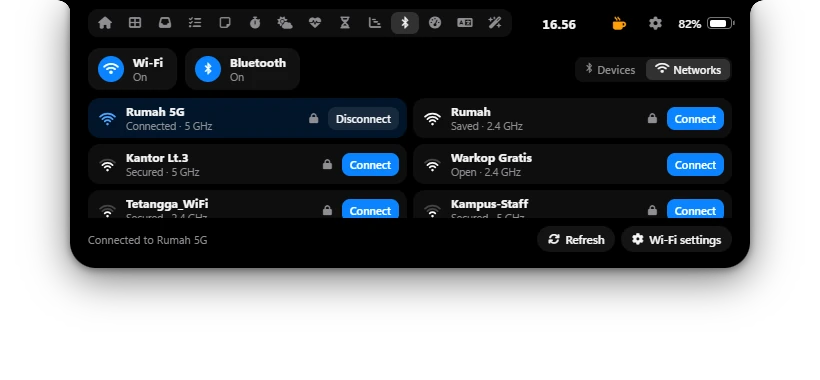
Click Networks. Poni lists the networks around you, the connected one on top, then by signal strength. Each row shows:
- the signal strength (three arcs),
- the network name and its status: Connected, Saved (used on this PC before), Secured (needs a password) or Open,
- the band: 2.4 GHz, 5 GHz or 6 GHz,
- a lock icon for networks with a password.
Poni lists up to 40 networks. Hidden networks don't appear. While the list is open, Poni scans again every 20 seconds. Refresh scans now, which takes a few seconds. The bottom line reads Connected to …, and Wi-Fi settings opens the Windows Wi-Fi settings.
Joining a network
- Saved or Open network: click Connect. That's it.
- New network with a password: click Connect and a Password box appears in its row. Type the password, then press Enter or click Join. Click × to cancel. Wi-Fi passwords are 8 to 63 characters. Once connected, Windows remembers the network as usual.
- Wrong password: Couldn’t connect. Check the password. appears under the network name, and the password box stays open so you can try again. A wrong password isn't saved.
- Work or school networks (sign-in with a username, 802.1X): if you haven't used it on this PC before, click Connect and Poni opens the Windows Wi-Fi list so you can sign in there. Once it's saved, you can connect to it from Poni next time.
- Disconnecting: click Disconnect on the connected network.
Location permission on Windows 11
Windows 11 only gives the list of Wi-Fi networks to desktop apps that are allowed to use location. If that's off, the Networks view says Windows only lists Wi-Fi networks to apps that may use your location. To turn it on:
- Click Open location settings in Poni. Or open Start → Settings → Privacy & security → Location.
- Turn on Location services.
- Scroll down and turn on Let desktop apps access your location.
- Go back to Poni and open Networks again, or click Refresh.
Poni doesn't use your location. Windows just requires this permission before it shares the Wi-Fi list. If the list is still empty, you may see one of these instead: Wi-Fi is off (turn Wi-Fi on), No Wi-Fi adapter or The Wi-Fi service isn’t running.
Options
| Option | What it does |
|---|---|
| Bluetooth devices & battery | Notices when a device connects, disconnects or runs low on battery. Default: on. |
| Low battery alert at | The low-battery level for the notice and the red bar, 5% to 50%. Default: 20%. |
Below these options, Settings lists your paired devices with their status, type and battery. If there are none, it says No paired devices found.