Teleprompter New
Read your script from a strip right under your webcam while you talk on a video call or record yourself. Your eyes stay close to the lens, and with Poni kept out of screen shares, nobody on the call sees the script.
Teleprompter tab (the scroll icon) · turn it on in Settings → Modules
Turning it on
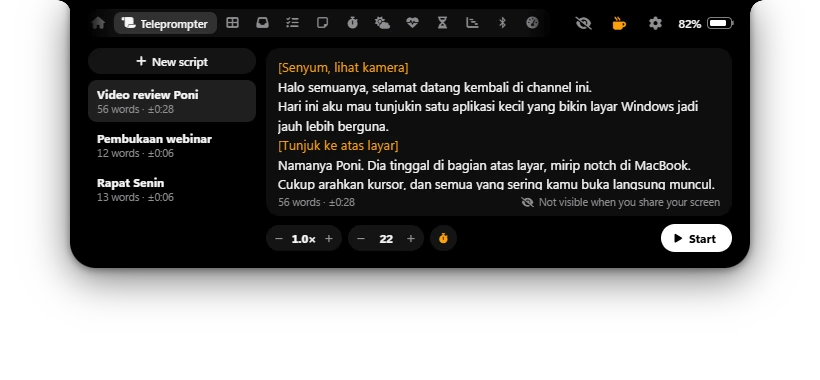
The Teleprompter tab is off at first. Open Settings → Modules and turn on Teleprompter (Your script scrolls right under the camera while you talk). The tab with the scroll icon then shows in the open Poni.
Your scripts
The tab keeps your scripts: the list on the left, the text of the one you picked on the right.
- New script starts an empty one, named Script 1, Script 2 and so on. Typing into the empty editor starts one too.
- Type or paste your text. It's saved as you type.
- Drop a
.txtfile on the tab: it becomes a new script with the file's name, or fills the script you're on if that one is still empty. - Each script in the list shows how many words it has and about how long it takes to read at the speed you set, like 56 words · ±0:28. The same line sits under the editor.
- Point at a script in the list for its buttons: the pen renames it (Enter keeps the name, Esc leaves it as it was), and the trash deletes it on a second click (Click again to delete).
The scripts stay on this PC, in teleprompter.json in Poni's data folder. Poni opens the one you picked last.
Cues
Put a note for yourself in square brackets, like [smile, look at the camera] or [show the slide]. Cues show small and orange, in the editor and in the strip. They aren't counted as words and aren't meant to be read out; a line that holds only a cue passes by in a moment. A cue can also sit in the middle of a line.
Speed, text size and countdown
Under the editor is a row of buttons. Poni remembers what you set. On a narrow Poni they show only their icons; point at one to see its name.
| Button | What it does |
|---|---|
| Speed | How fast the text moves, from 0.1× to 2.0× in steps of 0.1. At 1.0× it's about 140 words a minute, at 0.5× about 70. Default: 1.0×. |
| Text | The size of the text in the strip, 16 to 32 in steps of 2. Default: 22. |
| Countdown 3 s | A 3-2-1 before the text starts moving. Click it to turn it off or on. Default: on. |
| Start | Starts reading the script you picked. Greyed out while the script has no words. |
Reading
- Pick a script and click Start.
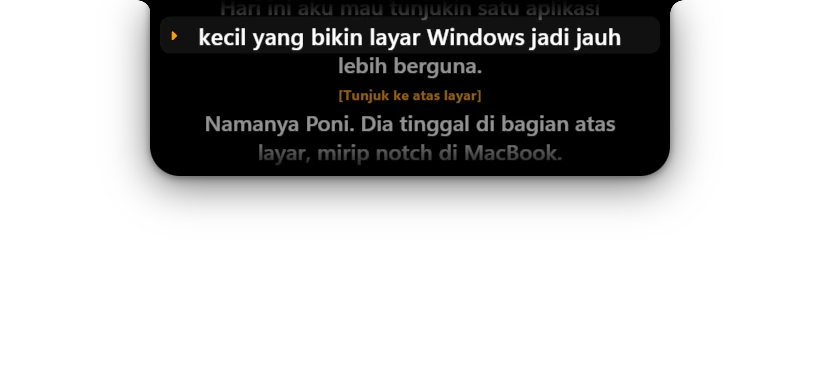
- Poni closes, and the closed Poni grows into a wide reading strip at the top of the screen, right under the camera of most laptops. With the countdown on, a big 3, 2, 1 comes first.
- The text glides up on its own. The line to read sits at the top of the strip, nearest the camera, marked with an orange ▸ on a soft band, brighter and a little bigger than the rest. Lines you've read dim above it, the lines to come wait below it.
- At the end the text stops. The play button then reads From the top.
Controls on the strip
Point at the strip and its controls show along the bottom. While it's paused they stay.
- Back one line, Play / Pause, Slower and Faster (− and + around the speed), and A− / A+ for the text size.
- A progress bar and the time left at the speed you set.
- Minimize to the notch, and Stop (×), which ends the reading.
Turn the mouse wheel over the strip to move the text by hand, about a line per notch, whether it's playing or paused.
Keys while reading
While the strip reads, these keys work from whatever app is in front, like Zoom, Google Meet or OBS. That app keeps the keyboard for everything else, and the keys go back to normal once you stop.
| Keys | What they do |
|---|---|
| Ctrl+Alt+Space | Pause or play. On the paused pill (below), it carries on reading. |
| Ctrl+Alt+PageUp | Faster, by 0.1×. |
| Ctrl+Alt+PageDown | Slower, by 0.1×. |
| Ctrl+Alt+Backspace | Back to the line before. |
| Esc | Stop. Only while the strip is up; minimized, Esc stays with your apps. |
If another app already uses one of these keys, Windows doesn't let Poni have it, and that key does nothing while reading. The buttons on the strip still work. Point at a button to see its key.
Minimized: the paused pill
Click Minimize to the notch and the reading pauses and goes into the closed Poni: Teleprompter on the left, Paused · 0:32 (the time left) and ▶ on the right. Click it, or press Ctrl+Alt+Space, and the strip comes back and reads on.
- Opening Poni (with the shortcut, Alt+N at first) also pauses the reading into the pill. While the strip or the pill shows, pointing at Poni doesn't open it.
- When Poni slides away for a fullscreen app, or you hide it from the tray, the reading waits paused in the pill too.
- Turning the Teleprompter tab off in Settings → Modules stops the reading.
Not in your screen share
Turn off Show Poni in screenshots & recordings in Settings → General (it's on at first). Windows then leaves Poni out of screen shares, screen recordings and screenshots, so the people on the call see your screen without the script. While it's off, the tab says Not visible when you share your screen under the editor.
Tips for video calls
- Keep Poni in the middle of the top edge, under the camera (Settings → General → Position along the top), so you look close to the lens while you read.
- Start a little slower than you think, say 0.7×, and fine-tune while you talk with Ctrl+Alt+PageUp / PageDown.
- Bigger text puts fewer words on a line, so your eyes move less from side to side.
- Use cues for what isn't spoken:
[next slide],[pause],[show the demo]. - Lost your place? Ctrl+Alt+Backspace goes back a line, or turn the mouse wheel over the strip.
- While it reads, the strip stays down even with Auto-hide or Step aside for the mouse on, and a Buddy hanging under Poni keeps out of the way.