
Getting started
Poni is an interactive notch at the top of your Windows screen. This part shows you how to install it, open and close it, use the tray icon, and move Poni where you want it.
Settings → General
Installing Poni
Download Poni from the GitHub Releases page. There are two versions:
- Setup (
Poni_x.y.z_x64-setup.exe): installs Poni on your PC and updates itself. This is the one we recommend. - Portable (a plain
.exe): runs without installing. You download new versions yourself, but Poni tells you when one is out.
Poni needs 64-bit Windows 10 or 11 with Microsoft Edge WebView2. WebView2 is already part of Windows 11 and up-to-date Windows 10. For updates, see updates and privacy.
The first time you run it, Windows may show "Windows protected your PC". Click More info, then Run anyway. SmartScreen shows this because Poni isn't signed with a paid code signing certificate.
The first start
Poni appears as a small black notch at the top centre of your main display. The Settings window opens too, on the Welcome page with an overview of what Poni can do. The Poni icon shows up in the system tray, next to the taskbar clock. If you can't see it, click the ^ arrow on the taskbar.
Opening and closing Poni
- Hover over Poni. It opens after a short pause (Hover delay).
- Click Poni. This always works, also when Open on hover is off.
- Press Alt+N. Poni opens on the display where your mouse is. If you don't move the mouse onto it, it closes by itself after 5 seconds. Press the shortcut again to close it.
To close Poni, move the mouse away. It closes after the Close delay. While you're typing in a text field in Poni (in Todo or Notes, for example), it stays open until you click outside Poni or press Esc.
In the open Poni, the icons at the top left are the module tabs. Click an icon to switch tabs, or press Alt+Shift+← and Alt+Shift+→. At the top right are the Settings button (the gear) and, on laptops, the battery indicator.
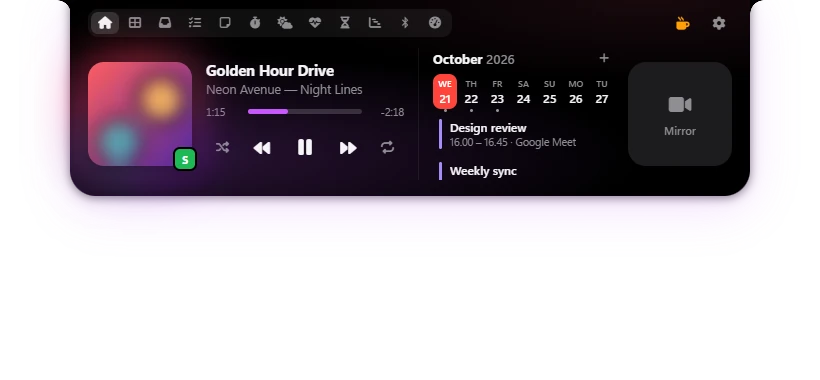
| Option | What it does |
|---|---|
| Open on hover | Poni opens when you move the mouse onto it. When it's off, click Poni to open it. Default: on. |
| Hover delay | The pause before Poni opens while the mouse is on it, 0–800 ms. If the mouse leaves before that, Poni stays closed. Default: 120 ms. |
| Close delay | The pause before Poni closes after the mouse leaves, 0–1500 ms. Default: 350 ms. |
| Open / close Poni | The keyboard shortcut that opens and closes Poni. It's under Keyboard shortcuts, see Settings. Default: Alt+N. |
The tray icon
Left-click the Poni icon in the tray to open Settings. Right-click it for this menu:
| Menu item | What it does |
|---|---|
| Settings… | Opens Settings. |
| Hide Poni / Show Poni | Hides Poni with no time limit. It comes back when you pick Show Poni or when Poni starts again. |
| Snooze | Hides Poni for a while: 15 minutes, 30 minutes, 1 hour or 2 hours. While it's snoozed, this item changes to Snoozed until 14:30 — wake now. Click it to bring Poni back. |
| Open Poni | Opens or closes Poni on the display where your mouse is. Your shortcut is shown next to it. |
| Reload Poni | Rebuilds Poni's windows. Handy if Poni stops reacting to the mouse. |
| Launch at login | When ticked, Poni starts when you sign in to Windows. Same as the option in Settings → General. |
| Restart | Closes Poni and starts it again. |
| Quit Poni | Closes Poni completely. |
Moving Poni
You can slide Poni left or right along the top edge of the screen.
- Press and hold the closed Poni. If Poni is already open, press an empty part of its top bar.
- Move the mouse left or right.
- Let go. The position is saved right away. If you let go near the middle of the screen, Poni snaps to the centre.
You can also set it in Settings → General → Position along the top, with the left, centre and right buttons or the 0–100% slider.
| Option | What it does |
|---|---|
| Position along the top | Where Poni sits on the top edge. 0% is the far left, 100% the far right. Default: 50% (centre). |
| Lock position | Poni can't be dragged with the mouse, so it doesn't move by accident. The buttons and slider in Settings still work. Default: off. |
More than one display
Choose where Poni appears with Show Poni on in Settings → General:
| Option | What it does |
|---|---|
| Primary display | Poni is only on your main display. Default. |
| All displays | One Poni on every display, in the same position. Each one opens on its own. |
| Display with the mouse cursor | Poni moves to whichever display the mouse is on. |
| Display 2 — 2560×1440 | Every display is listed too, with its number and resolution. Pick one to keep Poni on that display only. |
With All displays, Alt+N opens the Poni on the display where your mouse is.
Snooze and hide
Need a clear screen for a while? Press Alt+Shift+H. Poni disappears for 30 minutes, then comes back by itself. Press the same shortcut to bring it back sooner. Snooze is in the tray menu too, from 15 minutes to 2 hours.
Hide Poni in the tray menu hides it with no time limit. Snooze and Hide apply to Poni on every display.
| Option | What it does |
|---|---|
| Snooze Poni | The snooze shortcut. Press it again while snoozed to bring Poni back. Default: Alt+Shift+H. |
| Snooze duration | How long the shortcut snoozes Poni, 5–240 minutes. Default: 30 min. |
Want Poni out of sight but always one move away? Try Auto-hide.