
Home
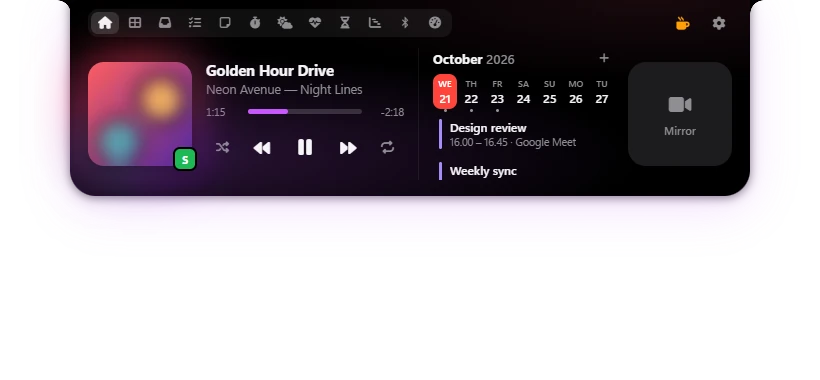
The Home tab holds three things: a music player, a seven-day calendar and a small camera mirror. It's the tab Poni opens on, unless you pick another one in Settings → Modules.
Home tab · Settings → Media · Settings → Calendar · Settings → Mirror
Music player
Poni reads what's playing through the Windows media controls. Spotify, Apple Music, Media Player, YouTube or YouTube Music in Edge, Chrome and Firefox, VLC, TIDAL, Deezer and similar apps work right away. You don't sign in or connect any account.
If several apps are open, Poni picks the one that's playing. When nothing is playing, it says Nothing playing.
- The album art is on the left. A small badge in its corner shows the first letter of the app, like a green S for Spotify or a blue C for Chrome. Hover over the badge to see the app's name.
- Click the album art to open Spotify, when the song comes from Spotify.
- Next to it are the title, then the artist and album. Long titles scroll so you can read them.
- Progress bar: click or drag to jump to another part of the song. The left number is the time played, the right one the time left. The bar is dimmed when the app doesn't allow seeking.
- Previous, Play/Pause, Next: the buttons in the middle. Buttons the app doesn't support are dimmed.
- Shuffle and Repeat sit left and right of them, and only show when the app supports them. Click Repeat again and again to go from off to repeat all, repeat one song, and back to off. The icon changes when it repeats one song, and active buttons light up in color.
Poni can only read apps that show up in the Windows media controls. If an app doesn't appear in Poni, first check whether its song shows up there.
Color glow and visualizer
With Color glow from album art, Poni picks colors from the album art. The Home tab gets a soft glow in that color, a blurred copy of the art sits behind the cover, and the progress bar and active Shuffle/Repeat buttons take the same color. It changes with every song. With the option off, they're white.
While Poni is closed and music plays, a small cover shows on the left and a visualizer on the right (as long as Settings → Live Activities → Music is on). With Real audio visualizer, the bars move with the sound coming out of your PC. The sound is analysed on your PC and never recorded. With it off, the bars still move, but with a plain animation that doesn't follow the song.
Other settings for the closed Poni, like the song title that shows briefly when the song changes and the play buttons on hover, are in The closed Poni.
Options in Settings → Media
| Option | What it does |
|---|---|
| Music controls | Shows the music player on Home and the song playing in the closed Poni. Turn it off and Poni shows no music at all. Default: on. |
| Real audio visualizer | The visualizer in the closed Poni follows the system sound. Analysed on this PC, never recorded. Default: on. |
| Visualizer style | Bars (5): five bars. Spectrum (8): eight narrower bars. Default: Bars (5). |
| Color glow from album art | The glow and accent color from the album art, as described above. Default: on. |
Calendar on Home
In the middle of the Home tab are the month and seven days, starting today. Today is highlighted, and days with events get a small dot under them.
- Click a day to see its events. Today is shown first.
- Each event shows its title, start and end time, and location. All-day events say All day. The colored line on the left is the calendar's color.
- Click an event to open it. If it has a Zoom, Google Meet, Microsoft Teams or Webex link, that link opens. Otherwise Poni opens the Windows calendar app.
Events that have ended are dimmed, and the one happening now is highlighted. Times follow the 24-hour time option in Settings → General. The + button next to the month opens Settings → Calendar.
No calendars yet? Home shows a Connect Google / Outlook calendar button. How to add calendars and events is in Calendar. If you don't want the calendar on Home, turn off Show calendar in Settings → Calendar.
Mirror
The Mirror tile on the right is a small mirror from your camera, handy for checking your hair or lighting before a video call.
- Click the Mirror tile. The camera turns on and the picture is flipped like a real mirror.
- Click it again to turn the camera off.
The camera only turns on when you click it, and turns off as soon as Poni closes or you switch to another tab. The microphone stays off, and nothing is recorded.
| Option (Settings → Mirror) | What it does |
|---|---|
| Show mirror | Shows the Mirror tile on Home. Default: on. |
| Shape | Rounded square or Circle. Default: Rounded square. |
If it says No camera, Poni couldn't open the camera. Make sure a camera is connected, then check that desktop apps may use the camera in Windows (Windows 11: Settings → Privacy & security → Camera).