
System
Keep an eye on your PC's CPU, memory, network and disk from the System tab. Handy when the PC feels slow or you want to see how fast a download is going.
Settings → System Monitor
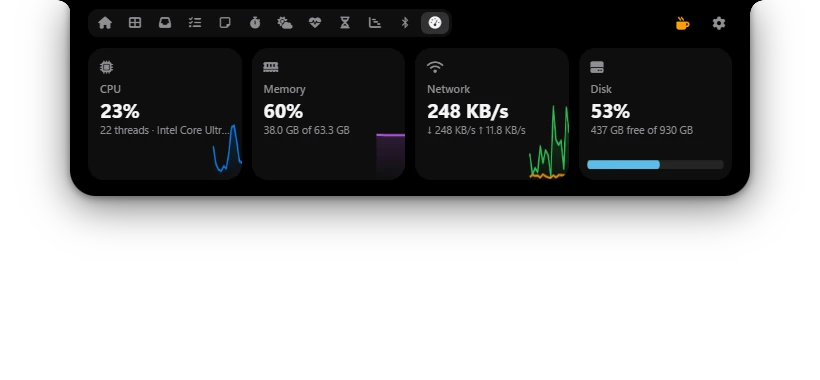
The four cards in the System tab
- CPU: processor use in percent, the number of threads and the processor's name.
- Memory: RAM in use in percent, and the amount, for example 38.0 GB of 63.3 GB.
- Network: the current download speed in large type, with download (↓) and upload (↑) below. The green graph is download, the orange one upload. Only physical adapters such as Wi-Fi and Ethernet are counted.
- Disk: how full the Windows drive (usually C:) is in percent, and the free space, for example 437 GB free of 930 GB.
CPU, memory and disk update every 1.5 seconds, the network every second. The graphs on the CPU, Memory and Network cards cover about the last minute; the Disk card uses a bar. Poni keeps measuring while it's closed, so the graphs are already filled when you open the tab.
Showing or hiding the tab
The System tab shows when both of these are on:
- Show the System tab in Settings → System Monitor,
- System in the list in Settings → Modules.
Both are on from the start. Turn either one off to hide the tab.
Options
| Option | What it does |
|---|---|
| Show the System tab | Shows the System tab with CPU, memory, network and disk. Default: on. |
Dashboard widget
Choose System in Settings → Dashboard to see CPU and memory bars on the Dashboard. Click the widget to open the System tab.