
AI Chat
Talk to an AI right in Poni, without opening a browser. Ask for ideas, drafts or quick answers. AI Chat also knows your schedule and can add reminders, todos, notes and calendar events when you ask.
Settings → AI Chat & Translate
AI Chat is the tab with the magic wand icon (AI Chat) and is on from the start. To use it, Poni needs access to an AI provider. The default is Google Gemini, which has a free tier.
Get a free Gemini API key
An API key is a code that lets Poni use Gemini on behalf of your account. All you need is a Google account.
- Open aistudio.google.com/apikey in your browser and sign in with your Google account. You can also click Get a key in Settings → AI Chat & Translate, or Get a Gemini key in the AI Chat tab.
- Click Create API key.
- Copy the key. It's a string of letters and numbers that starts with
AIza. - In Poni, open Settings → AI Chat & Translate. Under Google Gemini, paste the key into API key and click Save.
- When it worked, you'll see ● Saved (encrypted with Windows DPAPI). Windows keeps the key encrypted and Poni doesn't show it again.
- Open the AI Chat tab. Under the message box it now says
Gemini · gemini-3.5-flash-lite, and you can start asking.
The key is also saved when you press Enter or leave the field. To delete it, click the trash button next to Save.
Gemini's free tier has usage limits. If you ask too quickly, you'll get a rate limit message. Wait a moment and send again.
Other providers
Besides Gemini, AI Chat can use three other providers. Pick one in AI Chat uses, then fill in that provider's part on the same page.
| Provider | What to fill in |
|---|---|
| Google Gemini | API key from Google AI Studio. Model: any Gemini model id. Default: gemini-3.5-flash-lite (fast and cheap). |
| Claude (Anthropic API) | API key from console.anthropic.com → API keys (starts with sk-ant-). Model: any model id from the Anthropic docs. Default: claude-opus-5-5. |
| OpenAI-compatible API | The service's Base URL. Click the box for examples: OpenAI, OpenRouter, Groq, DeepSeek, Mistral, LM Studio (local), Ollama (local). Default: https://api.openai.com/v1. API key from your provider's dashboard, not needed for local servers. Model: required, for example gpt-4o-mini or deepseek-chat. |
| Ollama (local, free) | An AI that runs on your own PC, no key. Server URL (default: http://localhost:11434) and Model (default: llama3.2). Install Ollama and run ollama pull llama3.2 (or another model) first. |
Empty the Gemini or Claude Model field to go back to the default model.
Settings
| Option | What it does |
|---|---|
| AI Chat uses | The provider for AI Chat (and for chatting with the cat). Default: Google Gemini. |
| Translate uses | The provider for the Translate tab, which can differ from AI Chat. Default: Claude (Anthropic API). See Translate. |
| Share my day with AI Chat New | Sends a short summary of your day with each message, so AI Chat can answer “what's on today?”. Default: on. |
Chatting
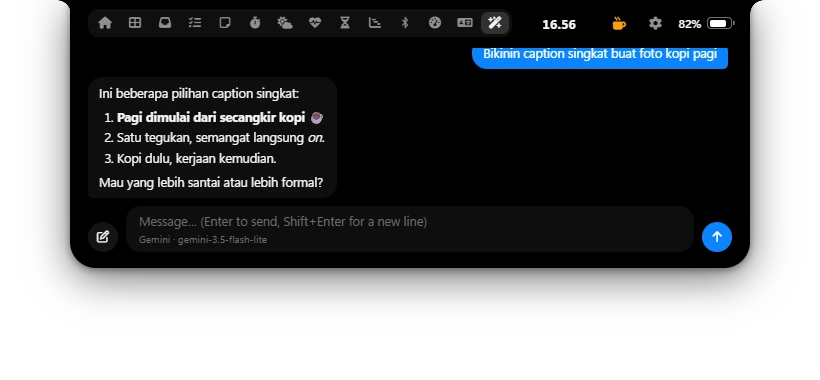
- Click the message box, type, and press Enter to send. Shift+Enter starts a new line. Poni stays open while you type. Press Esc when you're done.
- An empty chat shows four suggestions, such as Remind me in 15 minutes to stretch. Click one to put it in the message box, then press Enter.
- Three dots show while the AI is thinking. Answers can have lists, bold text, code and links. Links open in your browser.
- Hover over an answer to show its copy button. Code blocks have their own copy button in the corner.
- AI Chat answers in the language you write in and remembers the open conversation, so you can follow up with “make it more casual” or “now in Indonesian”.
What AI Chat knows New
With Share my day with AI Chat on, each message carries a short summary of your day:
- calendar events from now until the end of tomorrow (when the calendar is on),
- open todos and their due times,
- events you added in Poni,
- the weather now, by the hour, today and tomorrow (when Weather is on),
- prayer times (when Prayer Times is on),
- the Pomodoro state and session lengths,
- the names of the apps in the Dashboard app launcher.
So you can ask things like “What's on today, and when am I free?”, “Will it rain this afternoon?” or “When is Maghrib?”. The current date and time are always sent, even with this option off.
With Share my day with AI Chat off, AI Chat can't see your todos and events. It can still add new ones, but it can't change, finish or remove the ones you have.
Reminders
Just ask in plain words. AI Chat confirms in one sentence and Poni adds the reminder as a todo with a time. When it's due, Poni shows the reminder and plays a chime.
- “Remind me in 10 minutes to take the laundry in”
- “Remind me at 16:30 to call Budi” (if that time has passed today, it's set for tomorrow)
- “Tomorrow at 8 am remind me to bring my laptop”
Todos, notes, calendar, Pomodoro and apps New
| Example request | What Poni does |
|---|---|
| “Add pay the electricity bill to my todos” | Adds a todo without a time. If the same todo is already there, Poni doesn't add a copy and shows Already in Todo. |
| “Note this idea: review 3 free note apps” | Saves a new note in Notes. Its first line becomes the title. |
| “Team meeting tomorrow at 9 for 30 minutes, put it in my calendar” | Adds an event to Poni's calendar. Without a duration, Poni uses 1 hour. |
| “Start a focus session” | Starts a Pomodoro focus session (as long as your Focus setting, 25 minutes by default). |
| “Time for a break” | Starts a short break (Short break, 5 minutes by default). |
| “Stop the pomodoro” | Pauses Pomodoro. |
| “Open Calculator” | Opens an app from the Dashboard app launcher. Only apps in the launcher can be opened (see Dashboard). |
Changing what's already there New
AI Chat can change todos, reminders and events added in Poni. It doesn't make a second copy.
- “Move the laundry reminder to 5 pm”: the reminder's time changes.
- “The electricity bill todo doesn't need a time”: the time is removed, the todo stays.
- “Mark the electricity bill as done”: the todo is marked done.
- “Delete the buy water todo”: the todo goes to Trash, so you can still restore it in the Todo tab.
- “Move tomorrow's team meeting to 10”: the event moves and keeps its length.
- “Cancel tomorrow's team meeting”: the event is removed from Poni's calendar.
Events from subscribed calendars (Google, Outlook, iCal) are read-only. Only events added in Poni, through AI Chat or in Settings → Calendar, can be changed.
What it did, and Undo New
Each action shows as a small line under the answer, such as Reminder set, Added to Todo, Saved to Notes, Added to your calendar, Marked done or Moved to Trash.
- Undo reverses that action: something new is removed again, something changed goes back to how it was. The line is then struck through and marked undone. Starting Pomodoro and opening an app can't be undone.
- The Todo, Notes or Pomodoro button on the line opens that tab (when the module is on).
- If something fails, the line turns red and says why, for example Couldn’t set the reminder … Try a time like 15m or 14:30. Ask again with a clearer time.
AI Chat only acts when you ask it to. If it isn't clear when, which item or which app, it asks first.
What it can't do
Apart from the actions above, AI Chat can't do anything on your PC. It can't set other alarms or timers, open apps outside the launcher, open websites, send messages, read your screen or files, or search the web. Its answers come from the model's own knowledge and your day summary.
History and New chat New
- The pen button left of the message box (New chat) starts a new conversation. The previous one stays in History.
- The clock button (History) shows the list of Conversations: the title (your first message), the number of messages and when. Click one to open it and carry on.
- Click the trash icon on a row to delete that conversation.
- Poni keeps up to 40 recent conversations. Beyond that, the oldest one is dropped.
Privacy
- Your messages go straight from your PC to the provider you picked, not through any Poni server. With Share my day with AI Chat on, your day summary goes with them.
- Conversations are stored only on your PC, in
%APPDATA%\Poni\chats.json. - API keys are encrypted with Windows DPAPI and tied to your Windows account.
- Want everything to stay on your PC? Use Ollama.
Common errors
| Message | Fix |
|---|---|
| Add a Gemini API key to start chatting | No key yet. Follow “Get a free Gemini API key” above. |
| Invalid Gemini API key Gemini rejected the API key: … | The key is wrong or was deleted in Google AI Studio. Copy it again (all of it), paste it and click Save. |
| Gemini rate limit reached, try again in a moment | You've hit the free usage limit for now. Wait a moment and send again. For Claude and OpenAI-compatible the message is Rate limited, try again in a moment. |
| Gemini has no model named … | The model id has a typo. Fix the Model field, or empty it to go back to the default. |
| Can't reach the Gemini API | Poni can't get online. Check your connection. |
| Gemini returned no answer (…) | Gemini gave no answer to that question. Try wording it differently. |
| Invalid Anthropic API key API key rejected (401): … | The Claude or OpenAI-compatible key is wrong. Enter it again. |
| Not found at … | The OpenAI-compatible base URL or model name is wrong. |
| Can't reach Ollama at … Is it running? | Start Ollama, and make sure the model has been pulled. |
Failed answers aren't saved and aren't sent to the AI. Once the problem is fixed, send your message again.